
How to Back Up Steam Save Files on PC
A backup of a Steam save is a copy of one folder, and the only hard part is finding it. Steam Cloud does not replace that copy: it keeps the latest version in sync between your PCs, and Steam Support says plainly that lost saves are unlikely to be recovered. Here is where the folder sits, how to copy it, and the moments when you will be glad you did.
Takeaways Backing up a save, start to finish
- 1 Find the folder The Steam userdata folder, or Documents, Saved Games or AppData. PCGamingWiki lists the path for most PC games.
- 2 Close the game first A save copied while the game writes to it can be half a file. Quit to desktop, then copy.
- 3 Copy the whole folder Not one file. Many games keep an index or a profile next to the saves, and a save without it may not load.
- 4 Name it with a date Put the copy outside the game folder, with the date and what you were about to do: patch, mod, trainer, new playthrough.
Steam Cloud keeps your saves in sync, not safe
The Steam Cloud page on Steam Support describes the service as storage that games can use for settings, saves and stats, and it says something most people skim past: because synchronization is automated, Steam Support has limited ability to help, and lost saves are unlikely to be recovered. The cloud holds the newest state of your files. If that state is a corrupted save, a playthrough you overwrote by accident, or a save a mod broke, the cloud holds that.
Two more limits from the same page. Developers decide which files a game uploads, so a game showing the Steam Cloud logo on its store page may still leave some data local. And playing in offline mode stops syncing until you go online again, which Steam itself calls very likely to cause a conflict. A conflict window that asks you to pick between two versions is the moment a wrong click costs a weekend.
Where the save files actually are
There is no single place. Games that sync through Steam Cloud keep their local copy under the Steam folder, by default C:\Program Files (x86)\Steam\userdata, inside a folder for each Steam account that has logged in on the PC, then one folder per game named by its app ID. Plenty of games ignore that and save where Windows suggests:
| Where | Typical path on Windows | Common with |
|---|---|---|
| Steam userdata | Steam\userdata\<Steam ID>\<app ID>\ | Games that only save through Steam Cloud |
| Documents | Documents\My Games\<game>\ | Bethesda and many older PC games |
| Saved Games | C:\Users\<name>\Saved Games\<studio>\ | A number of newer releases |
| AppData | %APPDATA%\<game>\ or %LOCALAPPDATA%\<studio>\ | Unity and Unreal games, indie titles |
Stardew Valley is the AppData kind: its PCGamingWiki page gives %APPDATA%\StardewValley\Saves\ for Windows, one folder per farm. That wiki has a save location section for almost every PC game, and it is the quickest way to find the path for the game in front of you. Typing %APPDATA% into the Explorer address bar takes you to the right place without hunting for hidden folders.
Making the copy
- Quit the game to the desktop. A save copied while the game is writing can be a half-written file.
- Open the save folder and go one level up, so you see the whole folder rather than its contents.
- Copy the folder to a place outside the game and outside the Steam folder: a second drive, a USB stick, a synced folder of your own.
- Rename the copy with the date and the reason, for example
stardew 2026-10-12 before 1.7 patch.
Copy the folder, not a single file. Several games keep an index, a profile or a screenshot next to each save, and a save file without its neighbors may not show up in the load menu.
When a backup is worth two minutes
Before a big patch, because updates sometimes change the save format and do not go back. Before installing or removing mods, because some mods write their own data into the save and leave it unreadable once they are gone. Before a new playthrough in a game that keeps one slot per profile. And before cheating in a game that reacts to it. Red Dead Redemption 2 stops saving while a cheat code is active, and several games mark a save as cheated when you open their console; the achievements guide lists which ones and how. A copy from before is the only way back.
A trainer does not write to the save file itself. It changes values in memory, and the save records whatever state the game is in when you save. That is mostly a good thing, and it is also why a backup still makes sense: if you save with a hundred thousand gold you did not earn, that is what the save says from then on. The trainer setup guide recommends switching cheats off before saving for the same reason.
Restoring without fighting the cloud
Putting a backup back is the copy in reverse, with one extra step at the start. Skip it and Steam may sync the cloud version straight back over your restored save, which is the one mistake in this whole process that cannot be undone. In order:
- In the Steam library, right click the game, open Properties, and under General switch off Cloud Synchronization.
- Make sure the game is closed, then replace the save folder with your copy.
- Start the game and check that the save loads.
- Switch Cloud Synchronization back on. If Steam shows a conflict, keep the local files, because those are your restored backup.
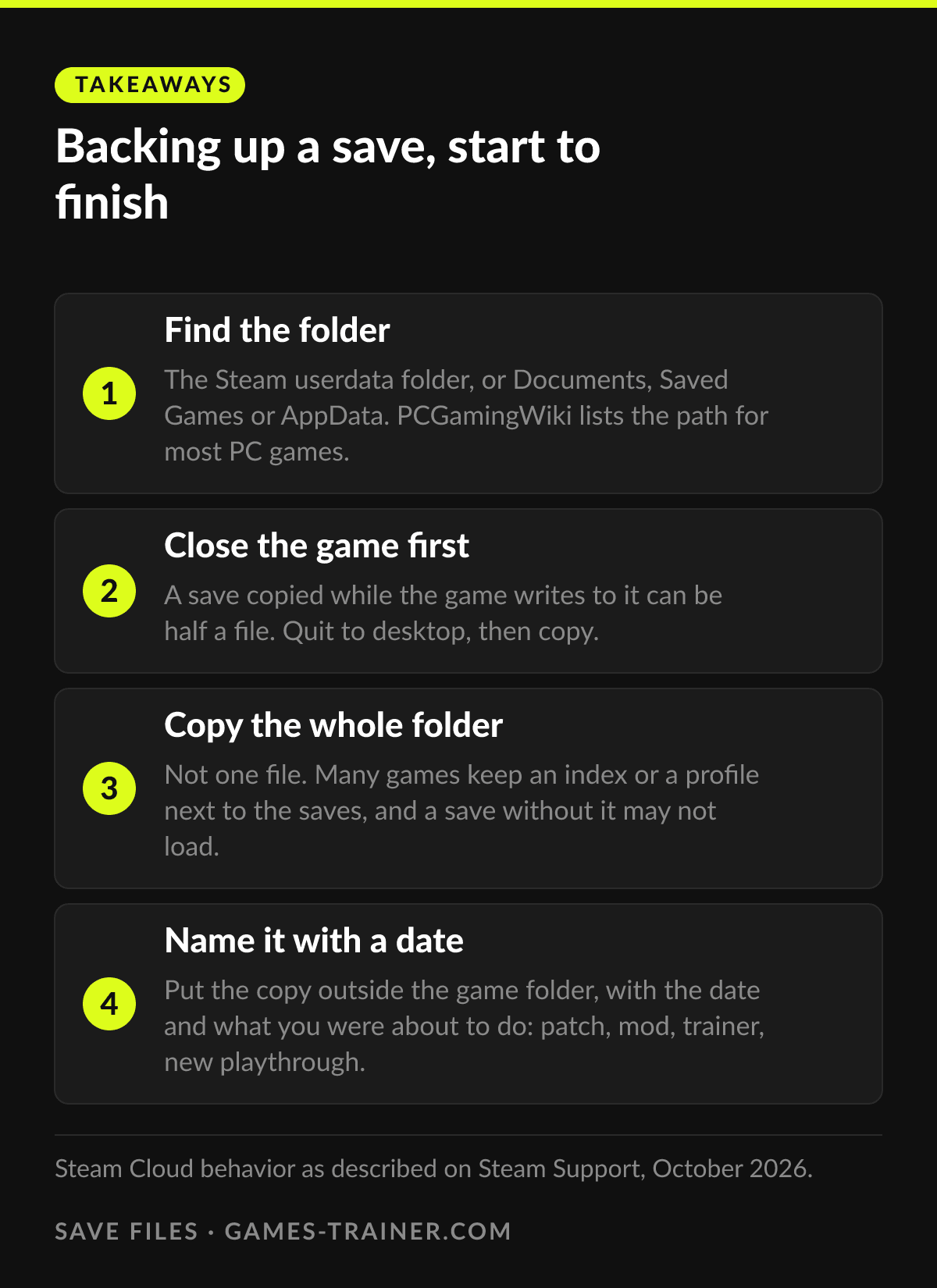 Infographic Backing up a save, start to finish Click to enlarge
Where are Steam save files stored?
Games that use Steam Cloud keep a local copy under C:\Program Files (x86)\Steam\userdata, in a folder named after your Steam ID and then the game's app ID. Many games save somewhere else entirely: Documents, the Saved Games folder, or AppData. PCGamingWiki lists the path per game.
Is Steam Cloud a backup?
No. It keeps one current version in sync across machines. If a save gets corrupted or overwritten, the cloud copy follows. Steam Support notes that lost cloud data is unlikely to be recoverable.
How do I restore a backed-up save?
Close the game, turn off Cloud Synchronization for that game in its Properties, copy your backup folder back to the original location, start the game. Turn cloud sync back on afterwards and choose the local files if Steam reports a conflict.