
How to Increase FPS and Fix Stuttering on PC
A game that runs at 90 frames one minute and 40 the next is not asking for a new graphics card. It is usually asking for one of four things: a driver, a display setting, one graphics option that costs more than it looks, or Windows to stop doing something behind it. Here is the order to check them in, with the settings Microsoft names.
Takeaways Low FPS or stuttering: the order to check
- 1 Graphics driver, from the maker NVIDIA, AMD or Intel, downloaded from their site, not from Windows Update. A driver from the game's launch month usually carries fixes for that game.
- 2 Windows: Game Mode and windowed optimizations Settings, Gaming, Game Mode on. Settings, System, Display, Graphics, Optimizations for windowed games on. Both change how Windows treats the game process.
- 3 One graphics option at a time Shadows, volumetric fog and ray tracing are the usual culprits. Drop one a notch, measure, then the next. Resolution scaling is the biggest single lever.
- 4 Background load and shader cache A browser with video, a launcher updating, an antivirus scan. The first ten minutes of a new game compile shaders; stutter that fades is that, not a fault.
Start with the driver
The graphics driver is the layer between the game and the card, and it is the most common fix for a game that runs worse than it should. Get it from NVIDIA, AMD or Intel directly, not from Windows Update, which delivers older certified builds. Driver releases are timed to game launches, and the notes usually name the games they fix.
Two things to know. A new driver empties the shader cache, so the first session afterwards stutters while the cache rebuilds. And a driver can regress: if a game got worse the day after an update, the previous version is a valid answer, and both makers keep an archive.
Two Windows settings that change how the game is treated
Game Mode. Under Settings, Gaming, Game Mode, on by default. Microsoft’s support page describes what it does: while a game runs, Windows prevents Windows Update from performing driver installations and sending restart notifications, and prioritizes the game for a more stable frame rate depending on the game and the system. It does not add frames on a machine that has nothing running in the background. It stops the background from taking them.
Optimizations for windowed games. Under Settings, System, Display, Graphics, in the default settings. Microsoft’s page on the feature says it moves compatible DirectX 10 and 11 games in windowed or borderless mode from the legacy presentation model to the flip model, reducing frame latency and enabling Auto HDR and variable refresh rate. If you play borderless, this is the difference between the old windowed path and the modern one. Turning on Auto HDR enables it automatically.
Neither setting is a trick. Both are documented, both are free, and both are worth checking before touching a single game option.
Graphics options, one at a time
A game’s preset menu hides which option is expensive. On most PCs the same handful are:
| Option | What it costs | What to do |
|---|---|---|
| Rendering resolution | The most of anything | Use the game’s resolution scale or its upscaler. 67 percent with DLSS, FSR or XeSS is the usual sweet spot |
| Shadows | Large, and they look fine one step down | High to Medium is the classic free win |
| Volumetric fog and clouds | Large in open-world games | One step down, rarely visible |
| Ray tracing | Very large | Off unless the card was bought for it |
| Anti-aliasing | Moderate, and upscalers include their own | Turn the separate setting off when an upscaler is on |
| Draw distance and crowd density | Depends on the game | Last thing to touch |
Change one, play a minute in the same place, compare. Two at once and you will not know which one mattered.
Background load
A browser tab playing video, a launcher updating a different game, a cloud client syncing, an antivirus doing its weekly scan. Each takes a slice of the CPU or the disk, and stutter that comes and goes is often one of them. The Task Manager’s performance tab shows who is busy during a stutter. Close what is not needed; a game does not need the browser.
Two more causes belong here. A drive that is nearly full slows the streaming of game assets, which shows up as hitches when you move into a new area. And a laptop on battery runs a different power plan than on the wall; plug it in and set the plan to performance while playing.
Stutter that fades is shader compilation
Modern games build the shaders your card needs the first time they run, and many do it while you play rather than at a loading screen. The result is a stutter in the first ten or twenty minutes that thins out and disappears. It comes back after a driver update, because the cache is cleared, and it comes back after a big game patch. That is not a fault to fix. Games that offer a shader pre-compilation step at start are worth letting finish.
What this has to do with trainers
Nothing directly, and one thing indirectly. A trainer, like an overlay or a capture tool, is a second program touching the game’s process, and on a machine already at its limit that shows up as a few frames. On a machine that is fine it does not. If a game stutters only with the trainer running, close the other overlays first; that is usually the actual load. The Cyberpunk 2077 trainer on a card already fighting Night City is the classic case. The setup guide covers the rest.
And if the frame rate was never the problem but the game is, the list of games worth a weekend is the other kind of fix.
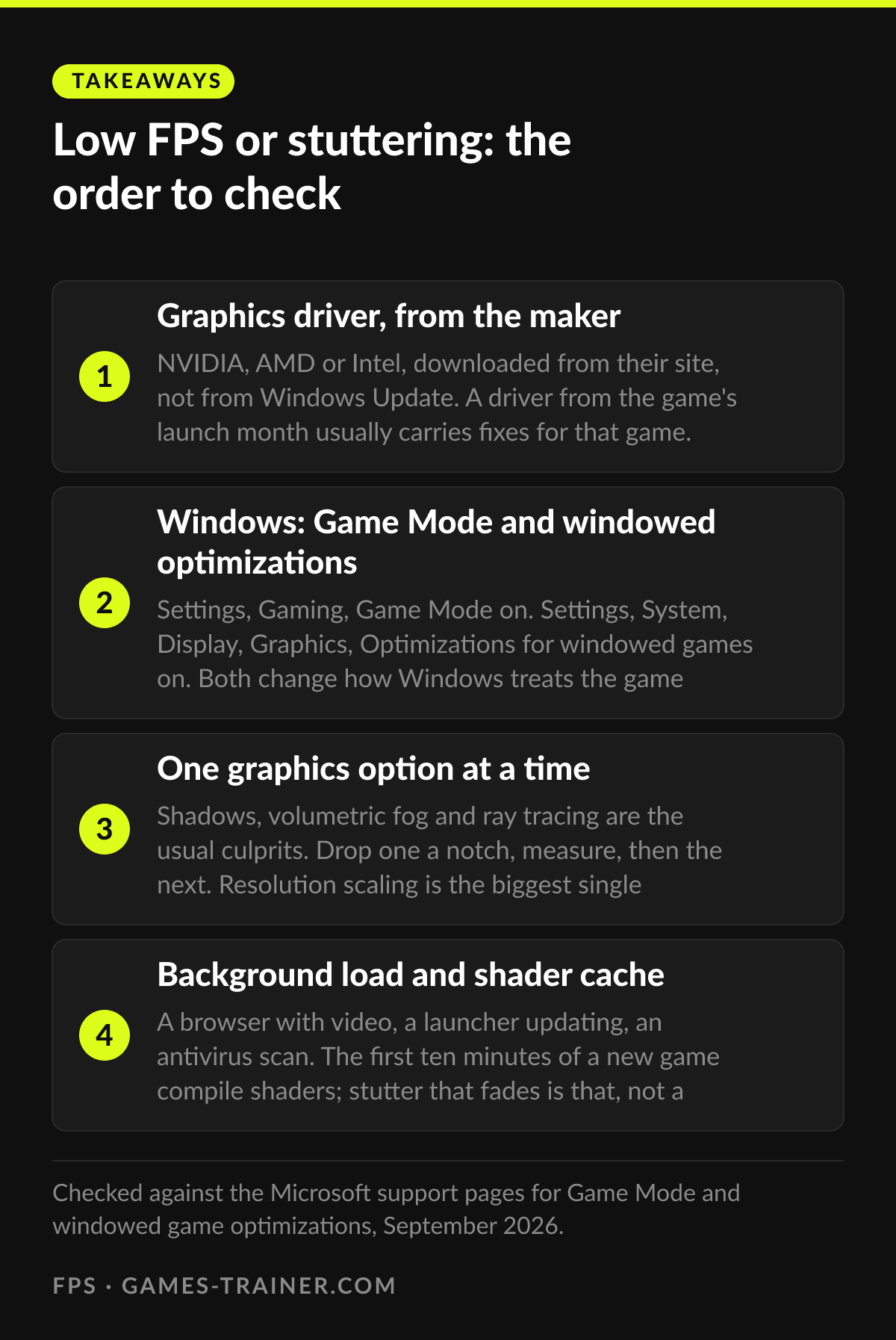 Infographic Low FPS or stuttering: the order to check Click to enlarge
 Does Game Mode actually help?
It changes what Windows does around the game: it prevents Windows Update from installing drivers and showing restart notifications while a game runs, and it prioritizes the game for a more stable frame rate on some systems. It is on by default and costs nothing to leave on.
Why does a game stutter for the first few minutes?
Shader compilation. Modern games build the shaders your graphics card needs on first run, and many do it while you play. The stutter fades as the cache fills. Updating the driver empties that cache, so the first session after a driver update stutters again.
What single setting gives the most FPS?
Rendering resolution, through the game's resolution scale or an upscaler such as DLSS, FSR or XeSS. Rendering at 67 percent and upscaling costs less image quality than any other setting of similar effect.
Should I use windowed or fullscreen?
On Windows 11 with Optimizations for windowed games turned on, borderless windowed runs through the same modern presentation path as fullscreen, with lower latency than the old windowed mode. It is the setting to enable if you use borderless.