
Trainer Flagged by Antivirus: What to Do
You download a trainer, Windows Security throws a red notification, and the file is gone before you saw it. That happens to trainers, memory editors and half the modding tools on PC, and the reason is the same every time: the program does what malware also does. Here is how to read the warning, when to trust the file, and how an exclusion works and what it costs.
Takeaways A trainer got flagged. Four steps before you click anything
- 1 Read the name of the detection A label starting with PUA or containing HackTool describes behavior. A label naming a trojan family describes an infection. They call for different reactions.
- 2 Check where the file came from The maker's own site or its official store page: probably a heuristic. A mirror, a video link, a forum attachment: delete it, whatever the label says.
- 3 Add an exclusion only for that file Windows Security, Virus and threat protection settings, Exclusions, Add or remove exclusions. Exclude the file or the process, never a whole drive.
- 4 Keep the rest of the scanner on An exclusion covers one path. Everything else on the PC stays protected, which is the whole point of doing it narrowly.
Why the flag happens at all
A trainer’s job is to find numbers in a running game and change them. To do that it opens the game’s process, reads its memory and writes into it, and often installs a hotkey hook so a keypress reaches the trainer while the game has focus. Each of those actions is also on the short list of things malware does when it tampers with another program, and antivirus software does not know why a program is doing them. It recognizes the pattern and reacts.
Microsoft describes the category it uses for this. A potentially unwanted application is, in its words, not considered a virus, malware, or other type of threat, but software that might perform actions that adversely affect endpoint performance or use. Its examples are advertising software, bundling software and evasion software. Trainers, memory editors and injectors land in or near that category depending on the scanner, and some vendors use the blunter label HackTool.
None of this is a verdict on a particular file. It is a verdict on a kind of program. That distinction is what the next two sections are about.
Reading the warning
The detection name tells you more than the red color does.
PUA, HackTool, RiskTool, Generic. Behavior labels. The scanner saw a program that attaches to processes and decided to warn you. This is the expected result for a trainer or for Cheat Engine, and it says nothing about whether this copy is clean.
A trojan or backdoor family name. A signature match against known malware. Far rarer for a legitimate trainer, and worth taking seriously even if it turns out to be a false positive, because you cannot tell from the label alone.
Where the file came from decides the rest. If you downloaded it from the maker’s own site, a behavior label is a heuristic flag, and you can decide what to do with it. If the file came from a mirror, a link under a video, a forum attachment or a repacked bundle, the label is irrelevant: that is where real malware travels under the names of tools people already expect their antivirus to dislike, and the calm reaction is to delete it.
A second opinion helps in the gray zone. Uploading the file to a multi-engine scanner shows how many vendors flag it and with which labels; ten engines saying HackTool and none naming a trojan is the profile of a heuristic.
Adding an exclusion, and what it costs
If the file is from its maker and the label is behavioral, an exclusion tells Windows Security to stop scanning that one item. Microsoft’s support page lays out the path:
| Step | Where |
|---|---|
| 1 | Open Windows Security, then Virus and threat protection |
| 2 | Under Virus and threat protection settings, choose Manage settings |
| 3 | Scroll to Exclusions and choose Add or remove exclusions |
| 4 | Add an exclusion and pick the type: File, Folder, File type or Process |
Four types, and they are not equal. File excludes one file. Process excludes the files a named program opens, which is what a trainer needs when it is blocked from touching the game rather than from running. Folder excludes everything in it, which is why the download folder is the wrong choice. File type excludes every file with that extension on the machine, which is never the right choice for this.
Microsoft’s own warning sits on that page and is worth quoting in spirit: an excluded file is no longer checked for threats, which could leave the device and its data vulnerable. It also recommends the full path and file name for a process exclusion, so that a different file cannot borrow the name.
So the rule is narrow. One file or one process, by full path, from a source you chose. Not the folder, not the type, not the drive.
Third-party scanners
Everything above is written for Windows Security because it is on every PC. Other scanners have the same mechanism under different names: allow list, whitelist, trusted applications. Some are more aggressive with behavior labels than Defender is, and some quarantine first and ask later, which is how a trainer disappears between download and install. The quarantine history shows what happened and offers to restore. The same rules apply to restoring as to excluding.
The other side of the same coin
The flag exists because trainers do something that looks like tampering. Anti-cheat systems in online games are built to catch that same behavior, only they do not warn, they ban. That is the reason every trainer page here says single-player, and why the guide on anti-cheat and bans exists. A trainer that your antivirus tolerates is still not welcome anywhere other people play.
Once the file is in and the exclusion is set, setting up the trainer takes a few minutes, and the warning does not come back for that file.
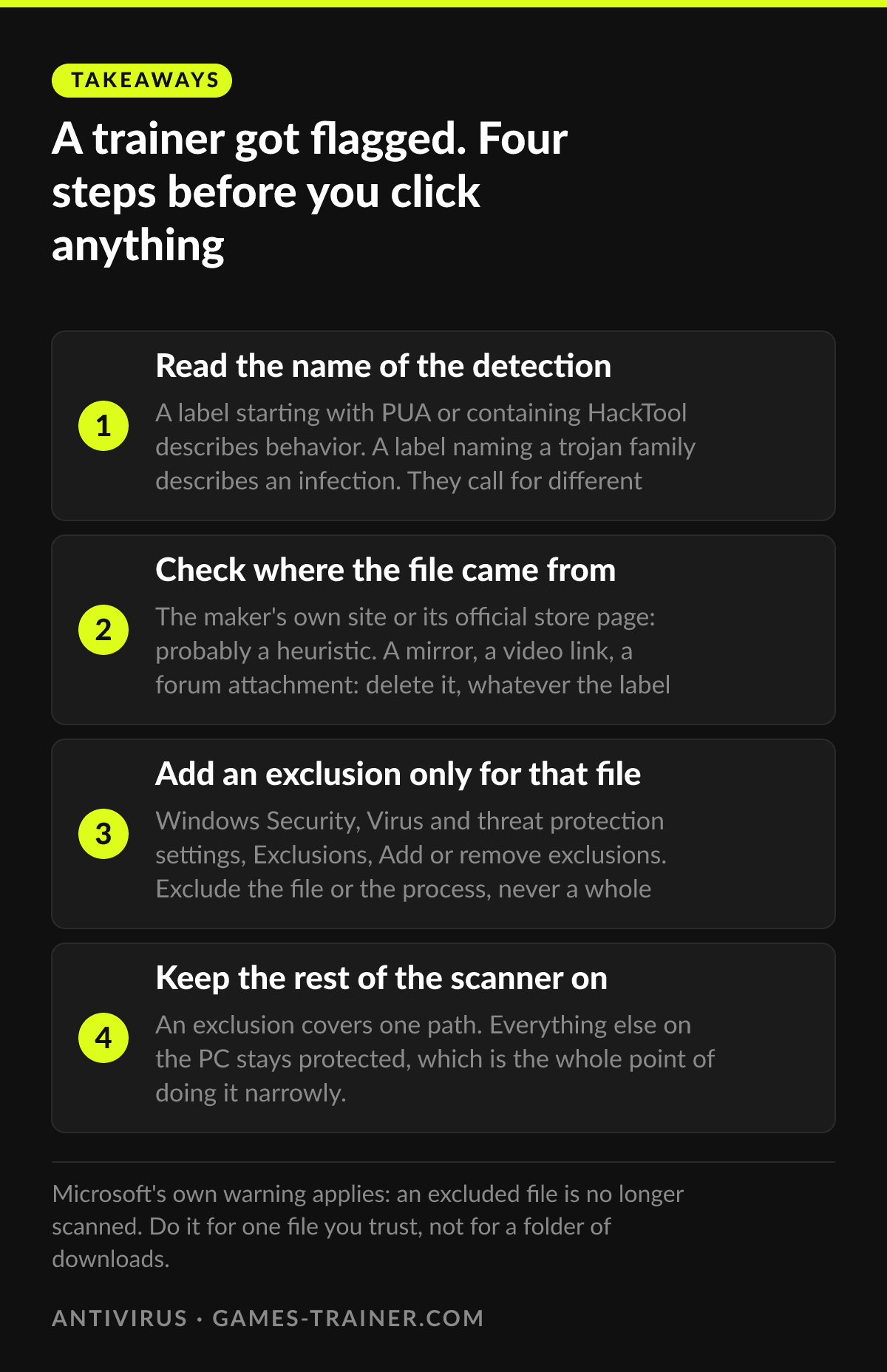 Infographic A trainer got flagged. Four steps before you click anything Click to enlarge
 Why does my antivirus say a game trainer is a virus?
Because a trainer attaches to a running game and writes into its memory, which is the same behavior a piece of malware shows when it tampers with a program. Antivirus heuristics match behavior. The label usually says PUA or HackTool rather than naming a virus family.
What is a PUA warning?
Potentially unwanted application. Microsoft defines it as software that is not a virus or malware but might affect how the machine is used, such as advertising, bundling or software that evades security products. It is a behavior category, not an infection.
How do I add an exclusion in Windows Security?
Open Windows Security, Virus and threat protection, Manage settings, Exclusions, Add or remove exclusions. Pick File, Folder, File type or Process and point it at the trainer. Microsoft recommends the full path for a process so another file cannot borrow the name.
Is it safe to add an exclusion?
For one file you got from its maker, yes, with the understanding that the file is no longer scanned. For a file from a mirror or a repacked download, no. Delete it instead. An exclusion does not make a bad file good.